


When your Android device doesn’t turn up to the normal homepage display, it is said to be bricked.
We have hard and soft brick; it needs careful hands when dealing with it. A bricked phone is quite a serious issue and can be a pain in the neck.
What causes phone briskness?
Phone users tend to tweak around manufacturer’s default settings, customizing, playing around the phone setup, flashing of the phone, installation of unhealthy apps; all these leads to a brick phone.
The symptoms include frozen phone, logo hangs while booting, blank or dead screen, and worse of all, no response to any touch or command, not even the power button.
Hard brick and Soft Brick
The two types of booting cause the same havoc. It prevents your phone from turning on. But they have their differences, ranging from what factors lead to each and the extent of their damage.
Hard brick devices are not very common like the soft brick. This happens when your devices does do not even turn on at all. It is the severe condition of a brick smartphone.
The kernel, an interface between a smartphone’s hardware and software is altered or tampered with. It is not easily fixed and either it does not even show up and recognized by a computer when connected.
A soft brick phone is mild and easily fixed. In this situation, the phone goes through a boot loop; a situation where the phone boots only halfway, not up to the home screen. It is also when your phone automatically turns on, even when you turn it off, it doesn’t stay off. It is caused by error in the software. They are very common unlike the hard brick problem.
How to fix a brick phone
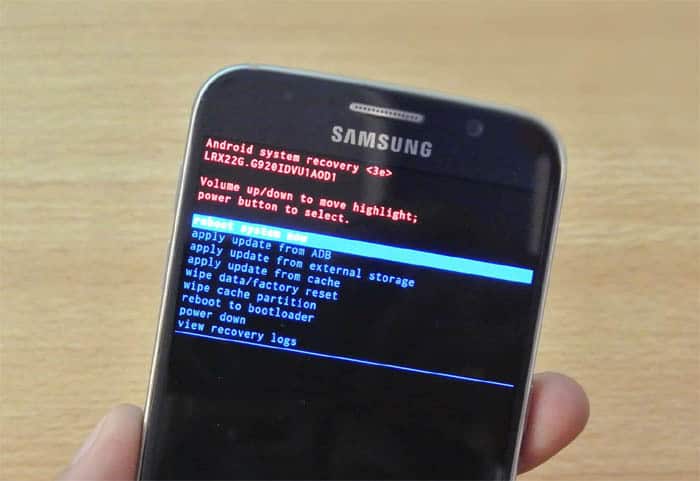
Wipe cache partition: A cache partition is a place where data about system files, kernels, modems, system apps, drivers etc. are stored. When it is clogged up, it tends to affect the boot system of the device, such as the boot loop. It is wisdom to regularly clear your cache. In this circumstance we cannot turn on our phone. We have to enter recover mode.
Normally, recovery mode can be entered by pressing the power and volume down button same time. But different devices with different ways to do this so we advise you check for your particular phone online.
On the Recovery Mode, navigation is done by pressing the volume down button. Select wipe cache partition option. When it is done, reboot system at the top of the options on the menu.
This frees up the partition. You should be ready to let go of some apps. The next option is the next method to use if clearing cache doesn’t work.
Flash the phone ROM
When your device doesn’t boot normal but instead boots directly to the Recovery Mode, its ROM needs to be flashed. This can be done by unlocking the boot loader of your phone and rooting. Refer online to your particular phone manual for guide on unlocking the Bootloader.
When you are done back up your data in the Recovery Mode.
Get an SDCard, download your phone ROM and save it in the SD Card. insert to the phone and flash. When you phone boots to the recovery mode, in the options selectInstall Zip from SD card. Select the ROM you earlier downloaded and wait for it. When you are done, select reboot phone in the options at the top.
Conclusion
If you cannot do this on your own, kindly get someone to help you out as a mistake might lead to a bigger issue. Identify what exactly is the issue and use the appropriate solutions.
Please leave a comment below. Thanks!